
Snap Map is the map inside Snapchat that can show your friends where you are. Location sharing on Snap Map is off by default, so the map itself is not the danger. The danger is turning sharing on, sharing with the wrong people, or forgetting it is on. Here is what it shows, who can see it, and how to hide your location with Ghost Mode.
What Snap Map shows
Snap introduced Snap Map on June 21, 2017. In that announcement, Snap said you decide whether to share your location with friends or keep it to yourself with Ghost Mode.
When you share, your friends see your Bitmoji on the map at your location. When they share, you see theirs. That is the whole point of the feature: friends can find each other.
The real dangers of SnapMap
Most of the risk comes from three habits.
- Sharing with people you don’t know well. Snap’s own Snap Map privacy and safety reminder says: “Only share your location with friends and family you trust.” A friend list built from people met once, or never, is not that list.
- Forgetting sharing is on. Snap says your device or Snapchat will remind you from time to time that you are sharing. Those reminders are easy to tap away.
- Showing a pattern. A location shared every night shows where you sleep. A location shared every weekday afternoon shows where you go to school or work.
Who can see your location on Snap Map
Snap’s help page, How do I share my location on Snap Map?, says only the friends you choose can see your location on the Map. You pick one of four settings:
- My Friends: every friend who has added you back.
- My Friends, Except…: everyone but the friends you exclude.
- Only These Friends…: just the people you select.
- Ghost Mode: no one.
“Only These Friends…” is the safest setting if you share at all.
How to turn on Ghost Mode in Snap Map
- Open Snapchat and go to Snap Map.
- Tap the gear icon in the bottom-right corner to open Map Settings.
- Select Ghost Mode.
Snap describes Ghost Mode as the way to keep your location hidden from everyone, and its safety reminder says it is how you stop sharing your location.
Lock it down on the phone, too
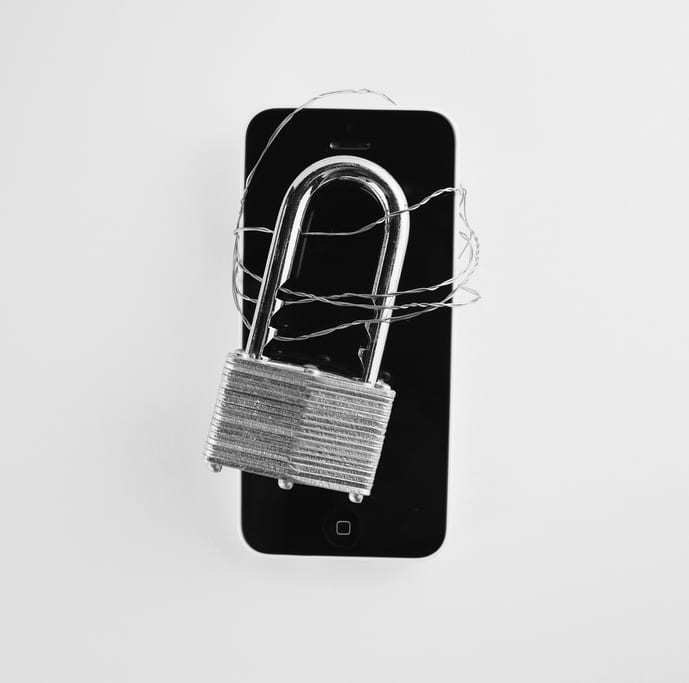
Snapchat can only share a location your phone gives it. On an iPhone, Apple’s guide to turning Location Services on or off gives the path: open Settings, tap Privacy & Security, then Location Services, then tap Snapchat. Choose Never to block location, or Ask Next Time Or When I Share to decide each time. “Always” lets an app use your location even in the background. On Android, check the app’s location permission in Settings. Our guide to removing bloatware also shows how to quiet an app you keep by limiting its permissions on Android.
For parents
Sit down with your teen and open Map Settings together. Look at who is on the sharing list. If the answer is “My Friends” and the friend list runs to hundreds, switch to Ghost Mode or “Only These Friends…”. Then check the phone’s location setting for Snapchat, too. Both changes take less than a minute.
Questions about Snap Map
Is location sharing on by default?
No. Snap says it is off by default. Someone has to turn it on.
Can strangers see me on Snap Map?
Not through location sharing. Snap says only the friends you choose can see your location. The risk is a friend list full of people you don’t actually know.
Does Ghost Mode hide me from everyone?
Yes. Snap says Ghost Mode keeps your location hidden from everyone.